I can’t see QLab / QLab is displaying this weird calendar thing
You might be presented with a calendar display when you approach the QLab computer. This is another small script I wrote here. It pulls and displays the Carleton Arts Calendar and updates that at midnight. The program displays an HTML file in Firefox. What you’re seeing is likely Firefox being full screened.
To get out of Firefox, simply press command+q (shortcut to quit apps on MacOS in general) to quit. Firefox will ask you to confirm. Hit return to confirm. You will then be presented with the QLab interface (hopefully). Hit escape to panic all cues to make sure the midnight update cue is not running anymore. You may now resume to production.
This weird calendar thing has a menu bar on top, which I don’t want
This happens when Firefox couldn’t properly full screen itself. It might be your palm resting on the touchpad when the Mac is trying to pull focus to the app.
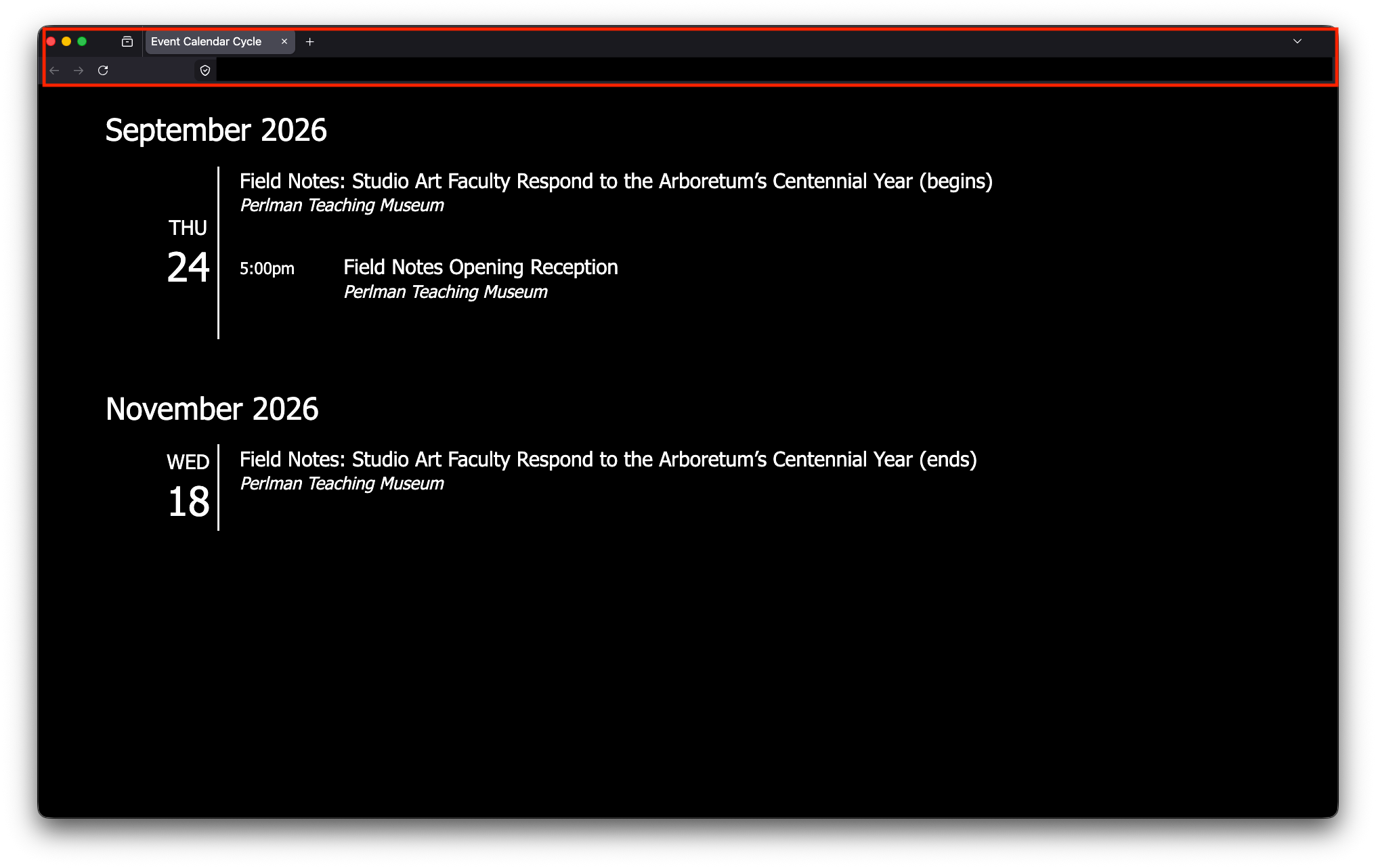
To properly full screen firefox, press ctrl+shift+f.
To quit Firefox properly, always make sure you press command+q and return to confirm. Otherwise, Firefox is still on the extended screen, and it might be overlaid on top of any QLab text cues you want to run.
The lower thirds are “out of order”
If you’re seeing the lower thirds key (black) still overlaying on the program after the cue, or the QLab cues are first fading out the keying and then fading in the keying (as opposed to fading in the key and then taking out the key), chances are the DSK was left on / accidentally triggered before you run the QLab cues. If you accidentally panic (escape) QLab cues too early, you might end up in this situation.
To get out of this situation, make sure DSK 1 is NOT on air (not lit up red) when you run the QLab script. You can take DSK 1 off the air by pressing DSK 1 CUT or DSK 1 AUTO (which fades out the DSK in 1 second).
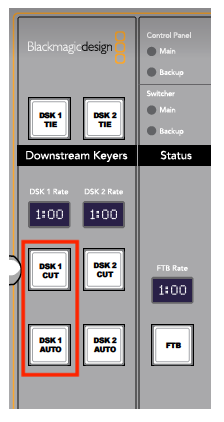
You can now run the lower thirds cues normally. Remember to always wait for the cues to fully finish to avoid this situation.
QLab lower thirds are displaying only to the QLab output / not overlaying on the program
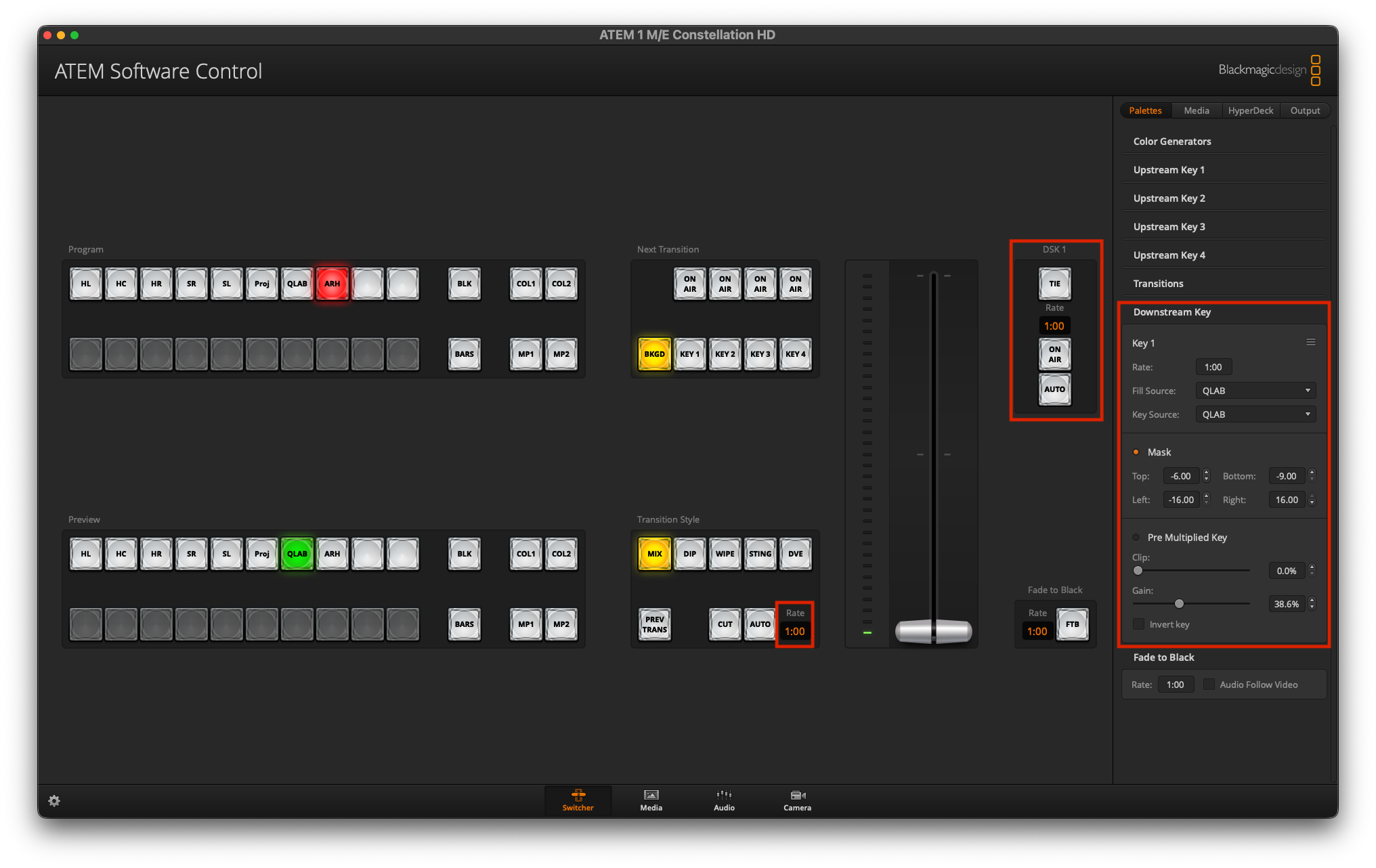
Sometimes this happens after a power outage where everything is power-cycled. The ATEM switcher or the laptop controlling the ATEM refreshes its Downstream Key settings. Make sure the Downstream Key has the following settings:
| Fill Source | QLAB |
| Key Source | QLAB |
| Top Mask | -6 |
| Bottom Mask | -9 |
| Left Mask | -16 |
| Right Mask | 16 |
| Clip | 0% |
| Gain | 40% |
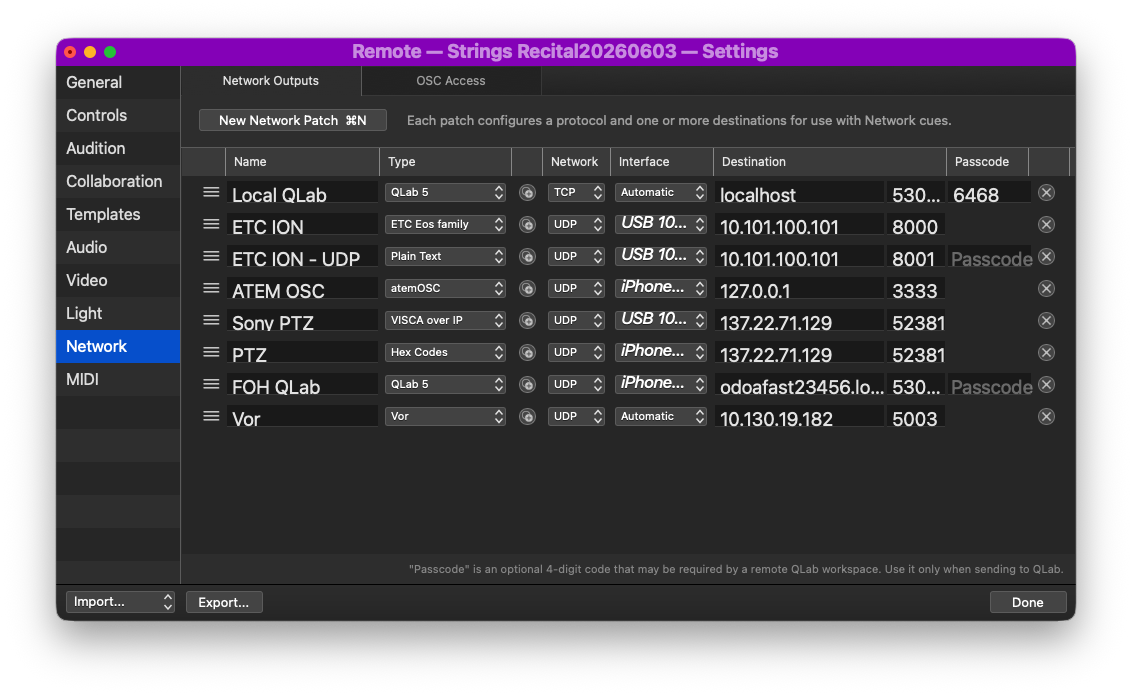
If after configuring the ATEM, the lower thirds are still not displaying on the program, the next step is to check the QLab settings. Click the gear icon at the bottom right of the QLab window, or click cmd+, to bring up the settings menu. Go to network, and you should see the network connections configured like the following.
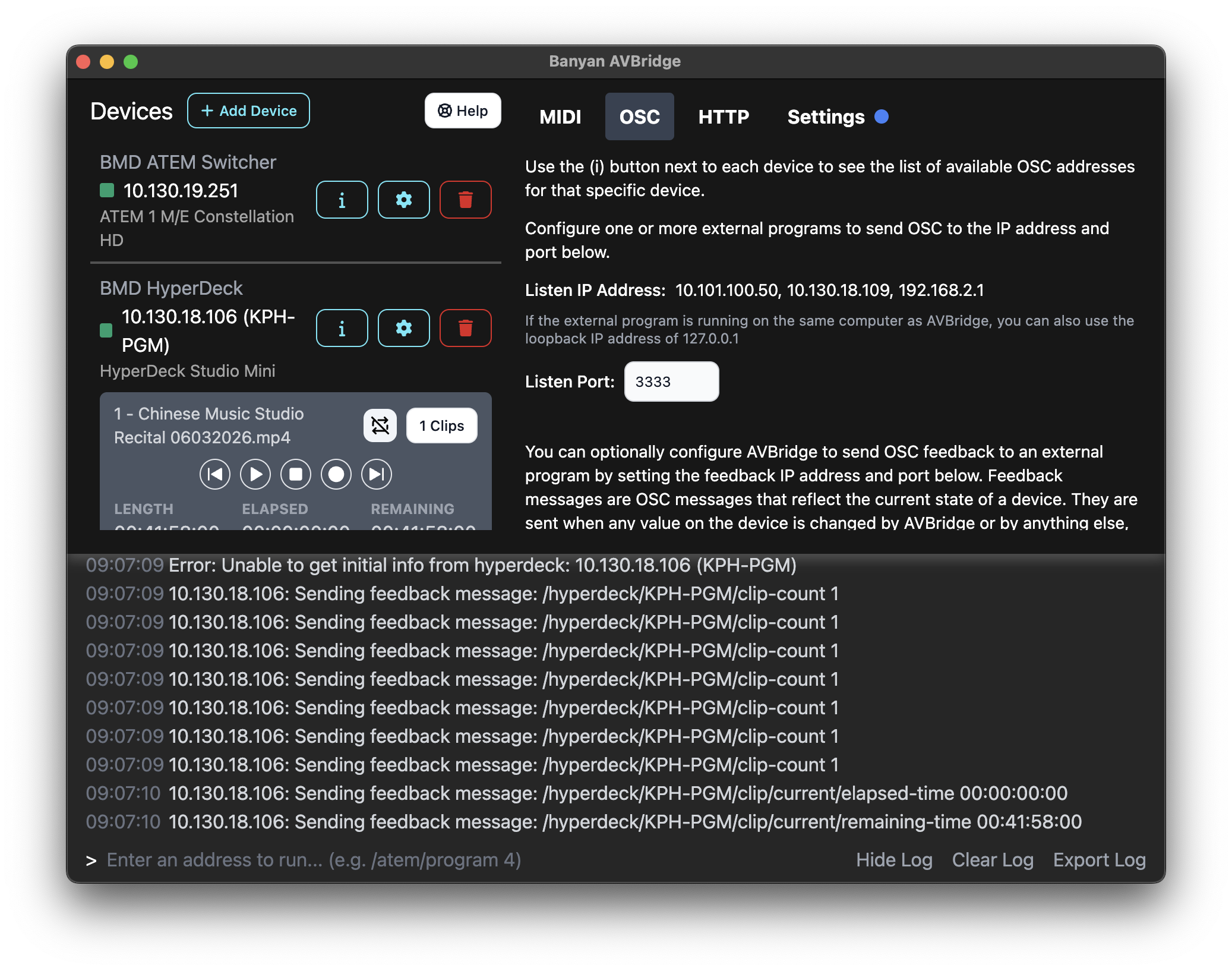
Lastly, on the same computer, open AV Bridge (formerly atemOSC) from the dock. This program receives OSC messages from QLab and convert and transmit to ATEM. Make sure the destinations have the correct IP’s.
QLab credits aren’t playing
This is an instance where there might be multiple QLab workspaces open, and the program is having trouble discerning which workspace to prioritize. Close any additional workspace and trigger the cue again.
I’m seeing some weird characters when I try to enter texts
You might see the following when you want to enter texts in QLab:
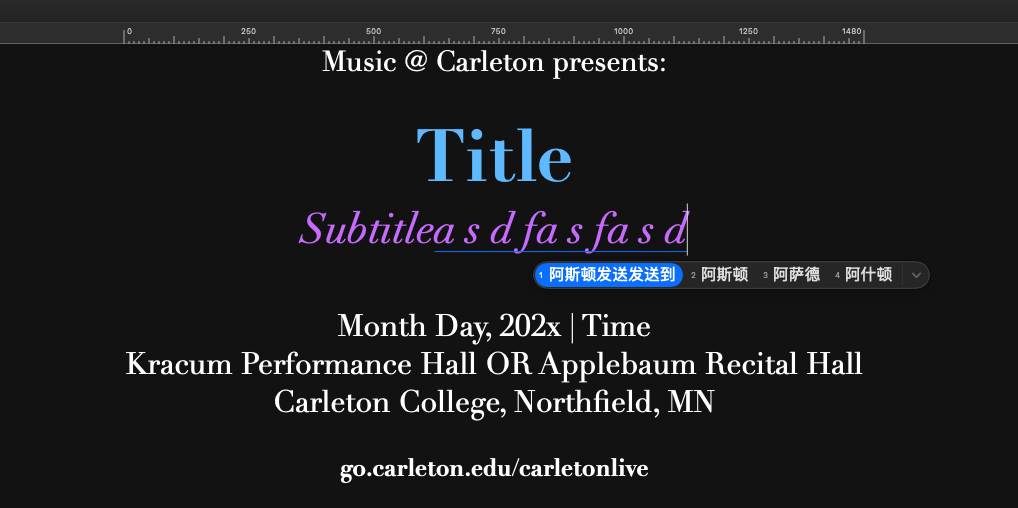
This is the Chinese characters input source on MacOS. To go back to English, press fn or the 
globe key to switch between input sources.