I can’t see the NAS
On the Mac you wish to connect to the NAS, go to Finder, hit Command + K. You should see the following.
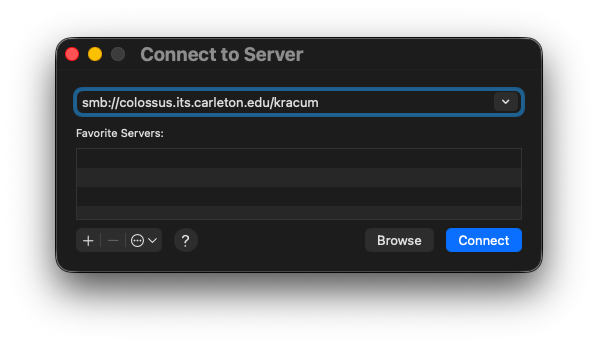
Enter this smb://colossus.its.carleton.edu/kracum into the address bar. It’ll then ask you to authenticate:
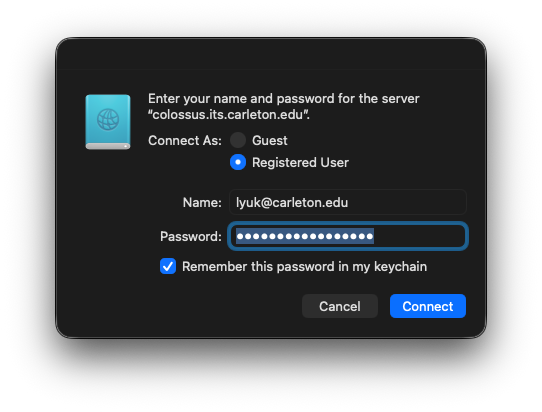
Enter your full Carleton email and password. You can save these credentials in your keychain to avoid re-entering them. The folder should now be visible.
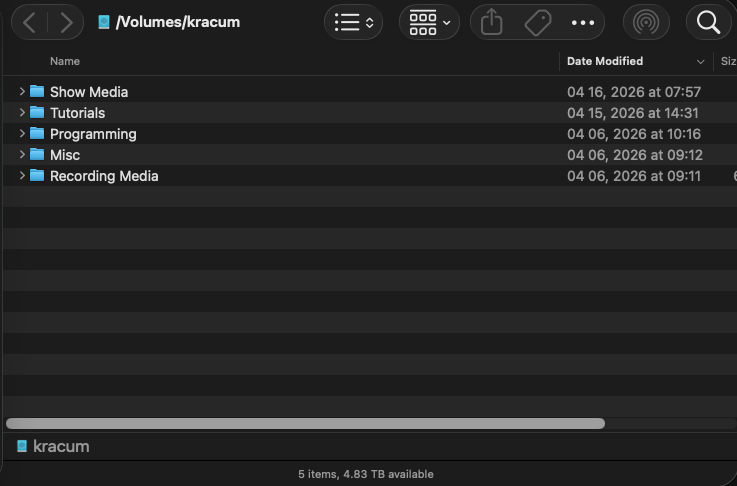
If you want to have this folder open automatically when the computer boots up, go to System Settings, General, and Login Items & Extensions. Then click the + icon and select the Kracum folder from the sidebar. If you’ve remembered your credentials in the keychain, the folder will launch at system start-up.
How do I transfer files from the HyperDeck to the NAS?
Our BMD HyperDeck supports FTP, which means we can download and upload its recordings without having to remove the media. To do this, launch Cyberduck  in the Dock.
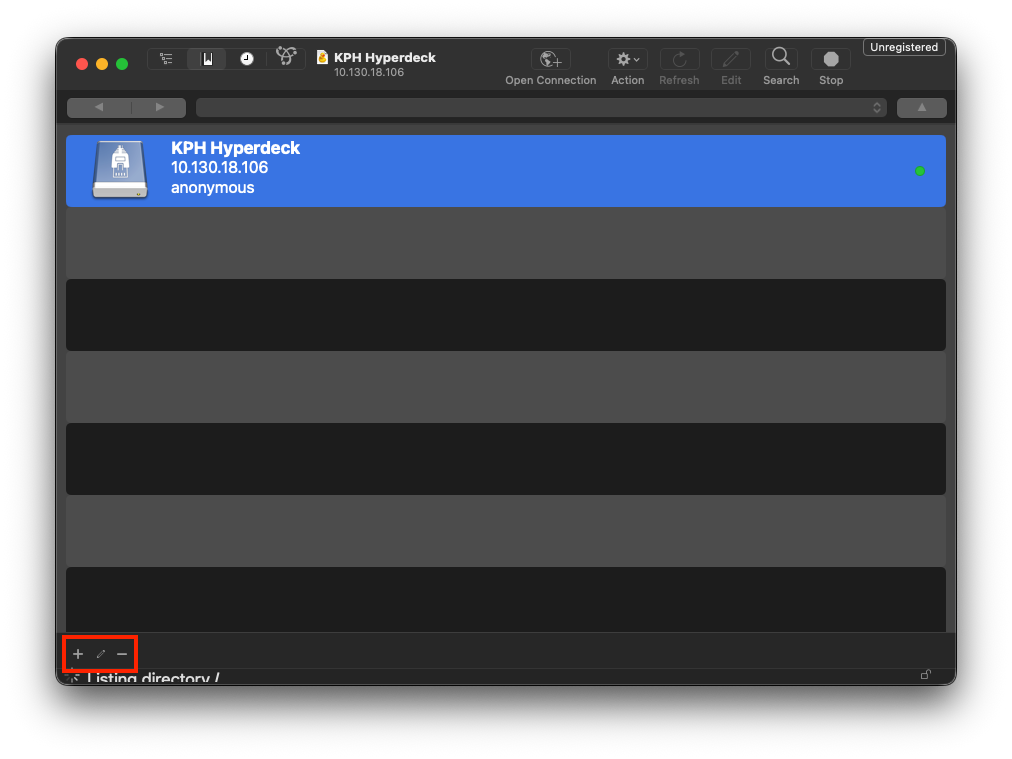
- If you don’t see a bookmark called KPH HyperDeck already, click the
+icon on the bottom left to create a connection. If you do, skip the following step. - Enter the nickname, server address (10.130.18.106), and enable anonymous login as shown below. You can now connect to the HyperDeck.
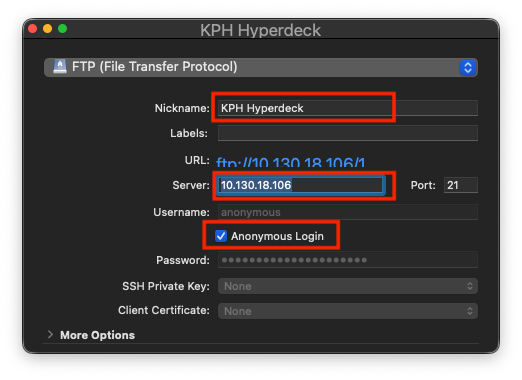
Now you should see a bookmark like that in step 1. You can double-click the bookmark to view the files inside the HyperDeck.
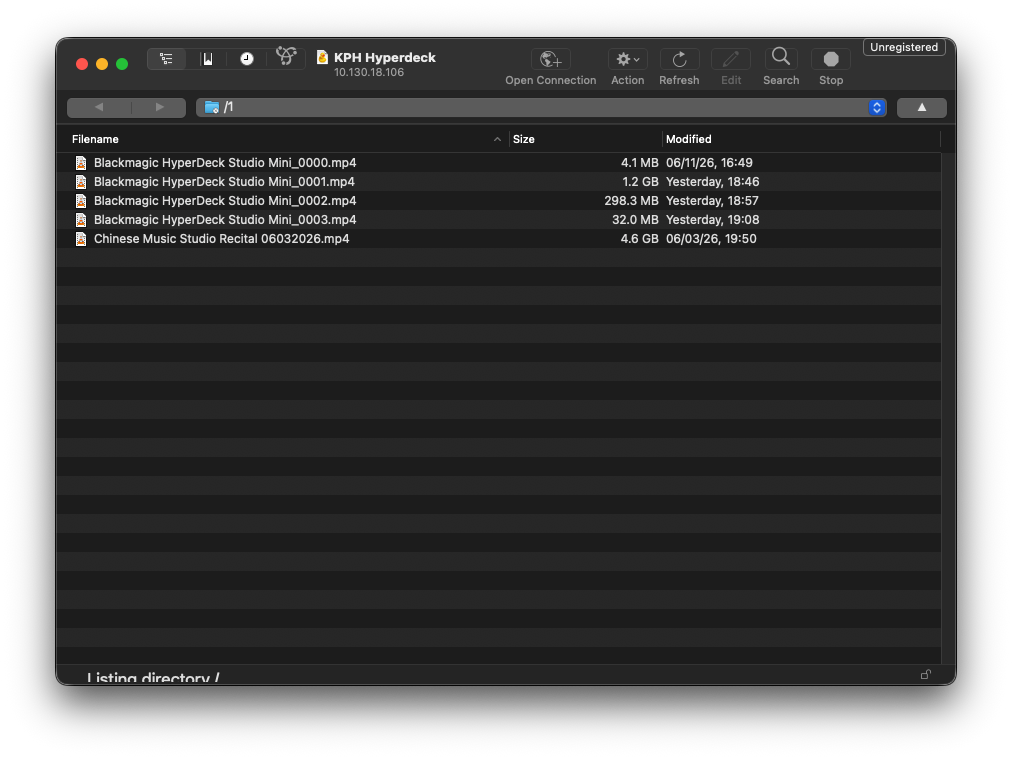
You can now open our NAS and drag the desired files from the HyperDeck into a NAS folder. I recommend putting them inside a designated folder to keep things organized. An example would be /Volumes/kracum/Recording Media/Video/1_Pre-Edit_Media/BMD.
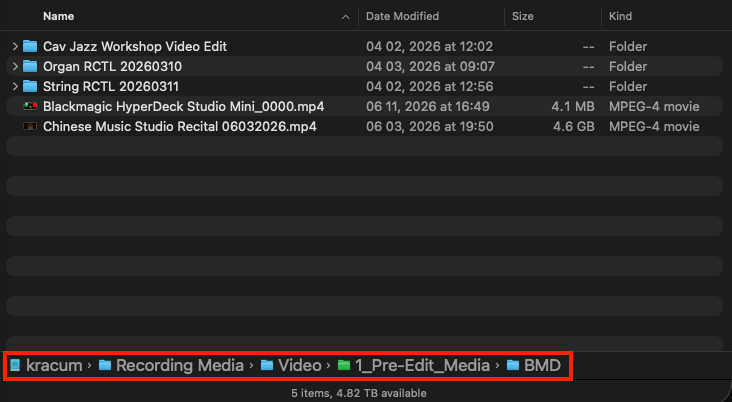
BMD NAS Folder
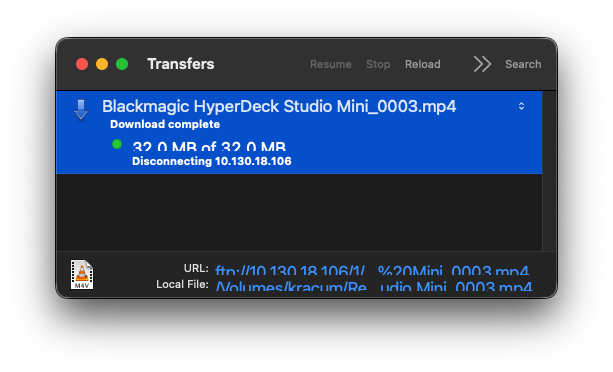
Cyberduck File Transfer
While transferring, Cyberduck will display real-time statistics and provide a confirmation when complete.
How do I use the iPad to control the light board?
On the iPad, make sure your Wi-Fi is connected to Kracum Lighting. Go to the Lighting folder, open MobileRFR. It should connect to WCC ION (10.101.100.101) automatically. You can then use the Facepanel or the Channel Check function to control the light board.
After you’re done, switch the Wi-Fi back to eduroam.